Usage on Linode
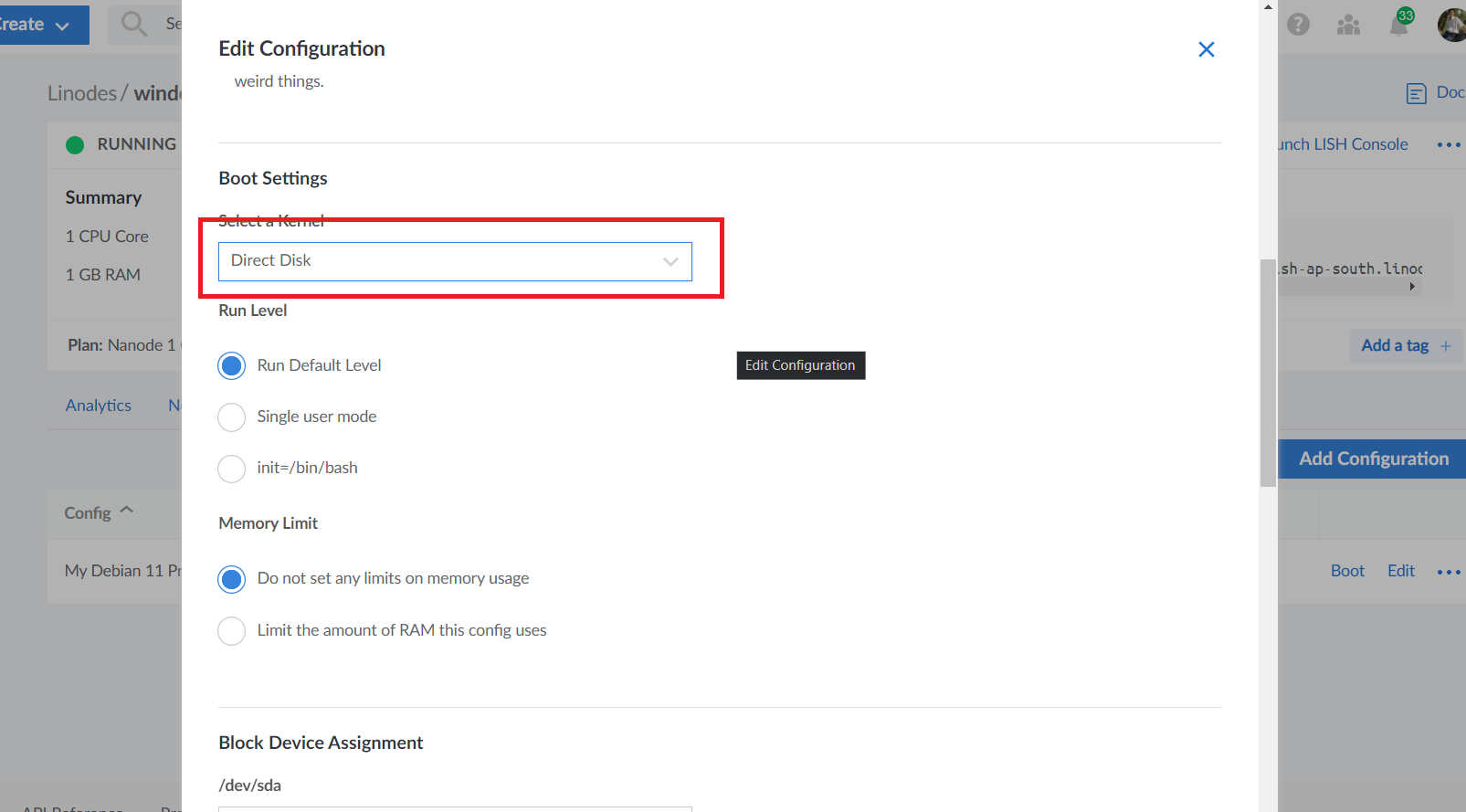
Installation on Linode is not same with other providers, because we need to change boot setting to Direct Disk.
Note:
- If change to Direct Disk after status changed to "Installing" but before "Installed" => Don't need reboot
- If change to Direct Disk after status changed to "Installed" => Need reboot
We also able to use TinyInstaller's InitScript in Linode. If you want to use init script, please follow steps below
Step 1 - Generate init script from TinyInstaller
To get started, you need an active TinyInstaller access key.
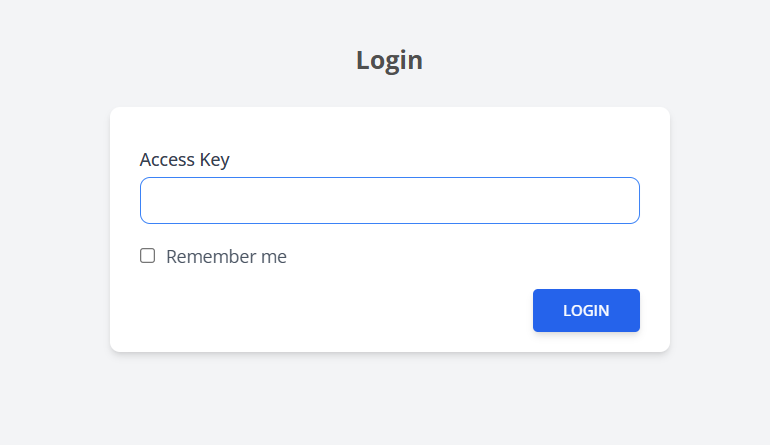
Login to TinyInstaller
Go to https://tinyinstaller.top/login then Enter your access key to continue.
Get Init Script
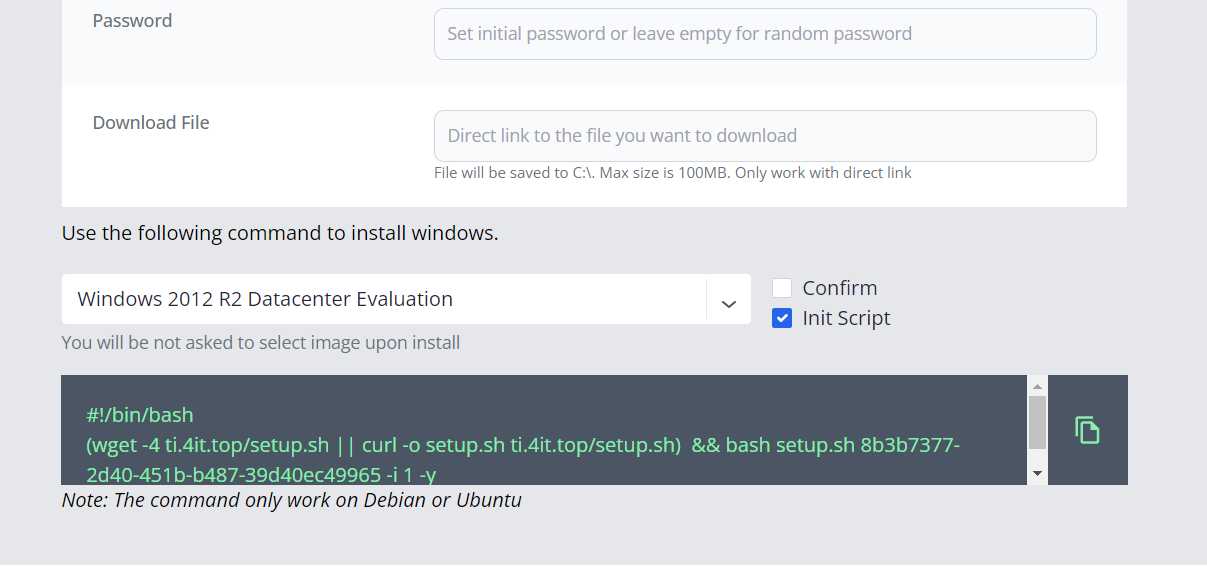
Then select Os and check Init Script
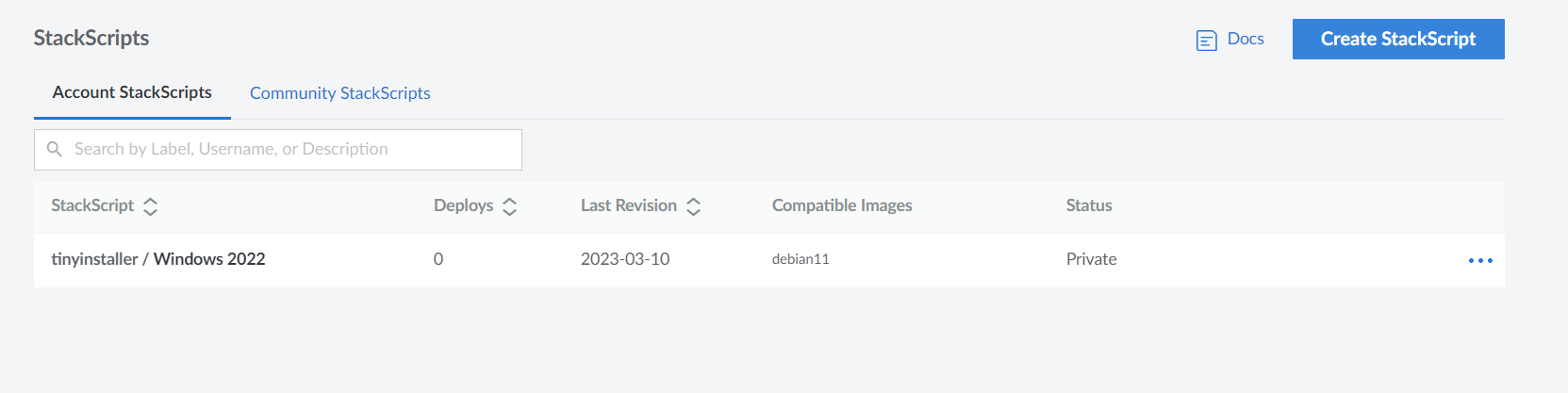
Step 2 - Create Stack Script
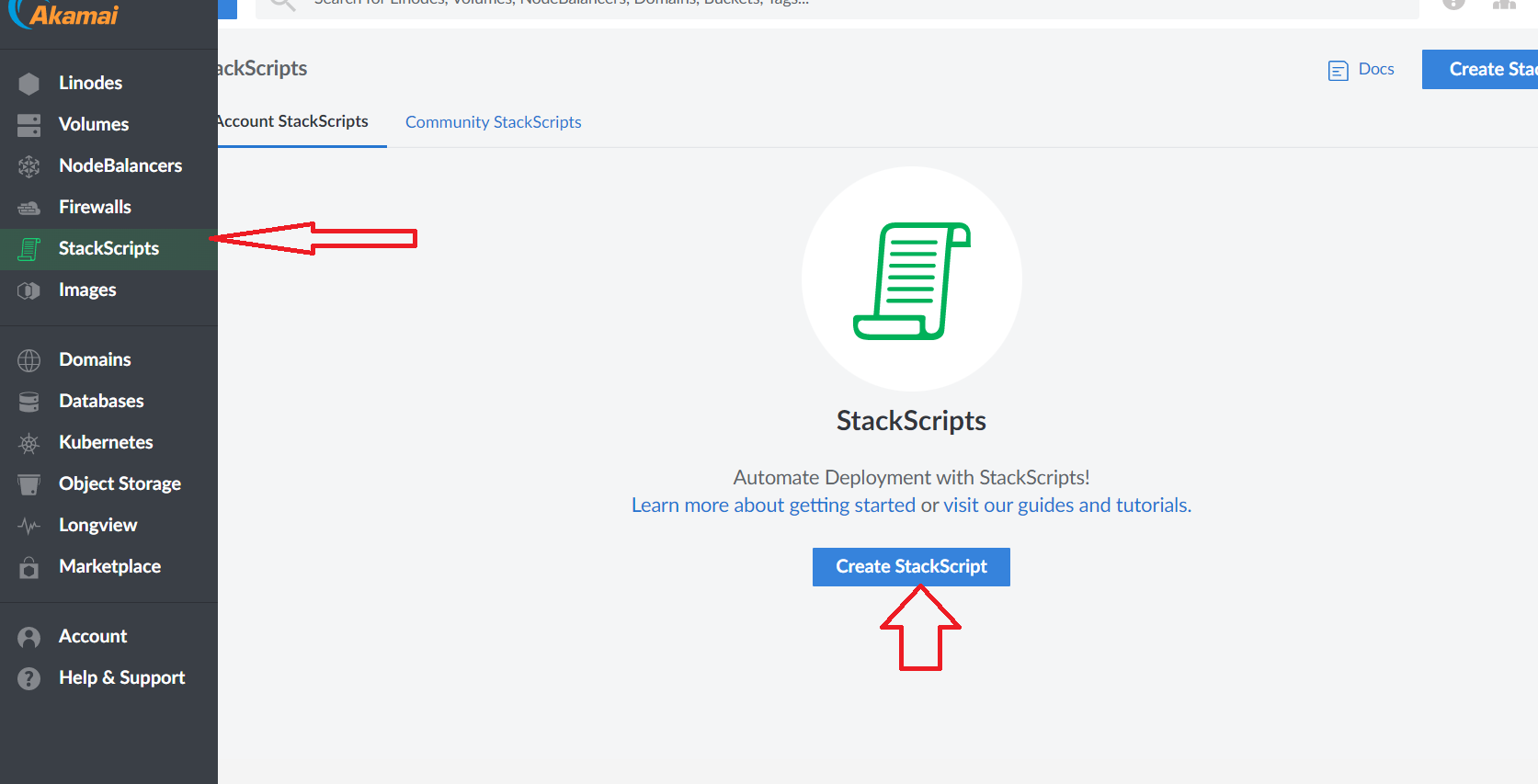
Goto StackScripts and click Create Stack Script
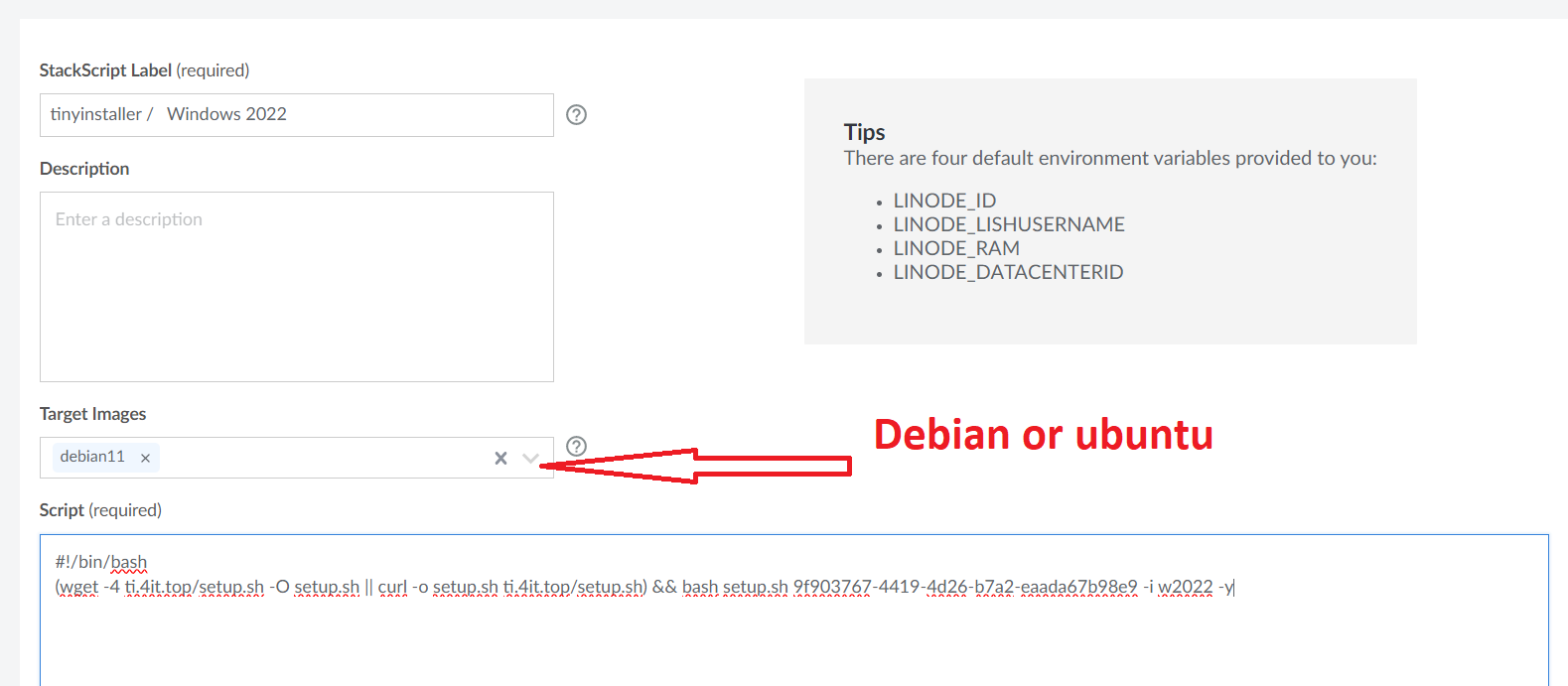
Enter script (copy from Step 1) here, make sure you select Debian 11 in Target Images
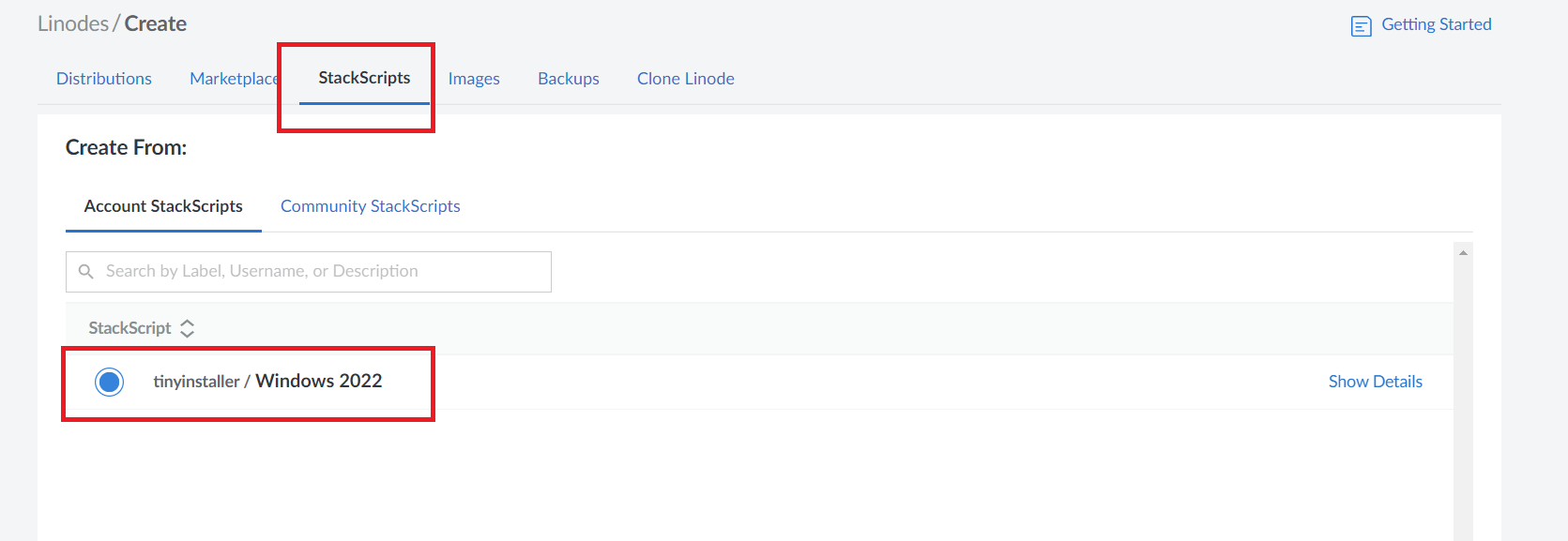
Step 3 - Create Windows VPS on Linode with StackScript
In Linodes/Create screen select stack scripts tab then choose the stack which you created before
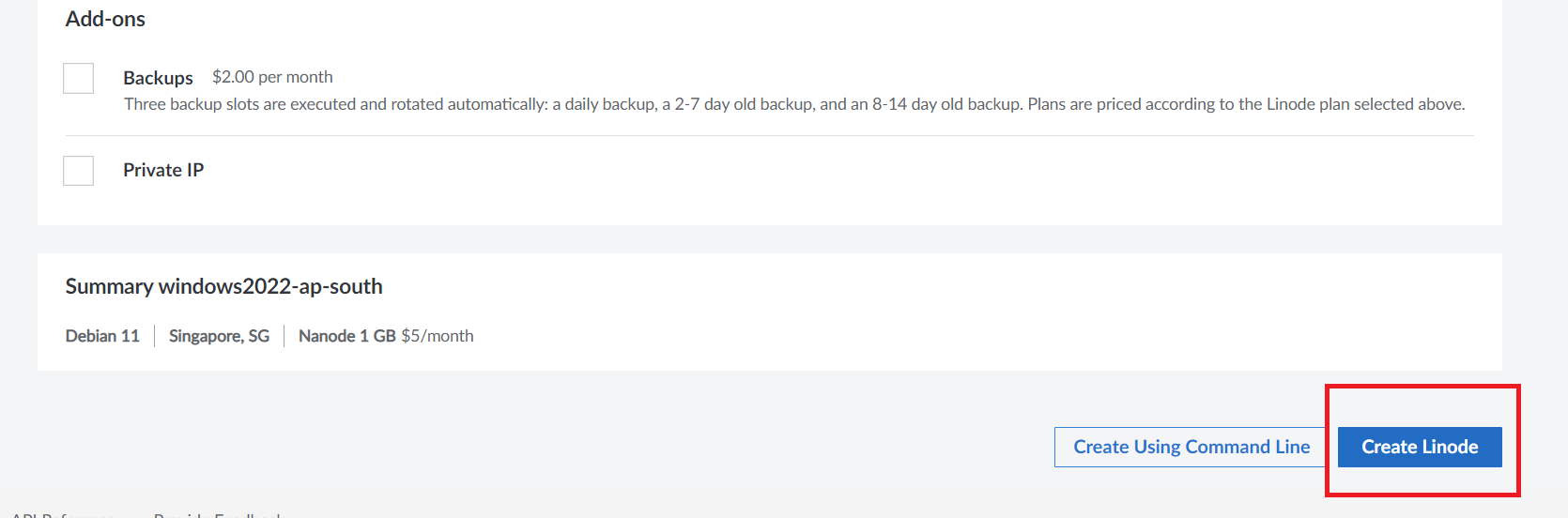
Click Create Linode to create
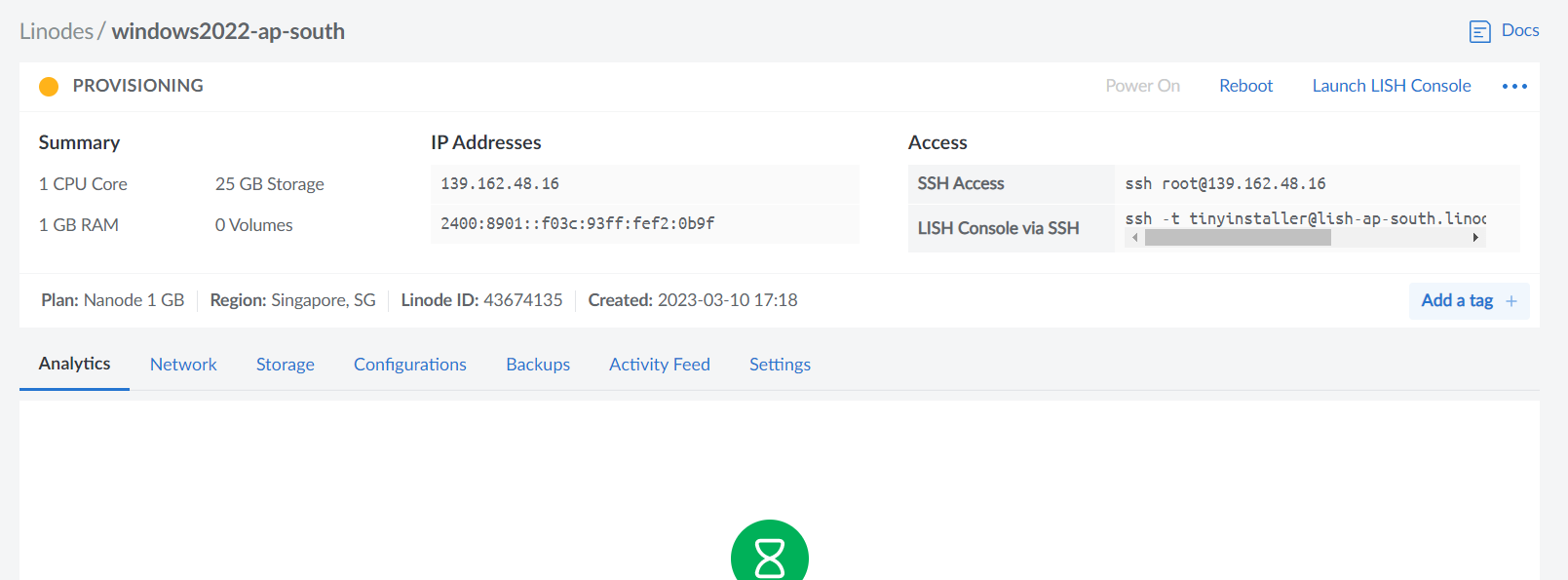
After instance is running then go back to TinyInstaller -> Deployment History to check install status
Step 4 - Check install status
Go to Deployment History you may check status there
Please be patient and wait until you see your instance appear in the history list before moving to next step
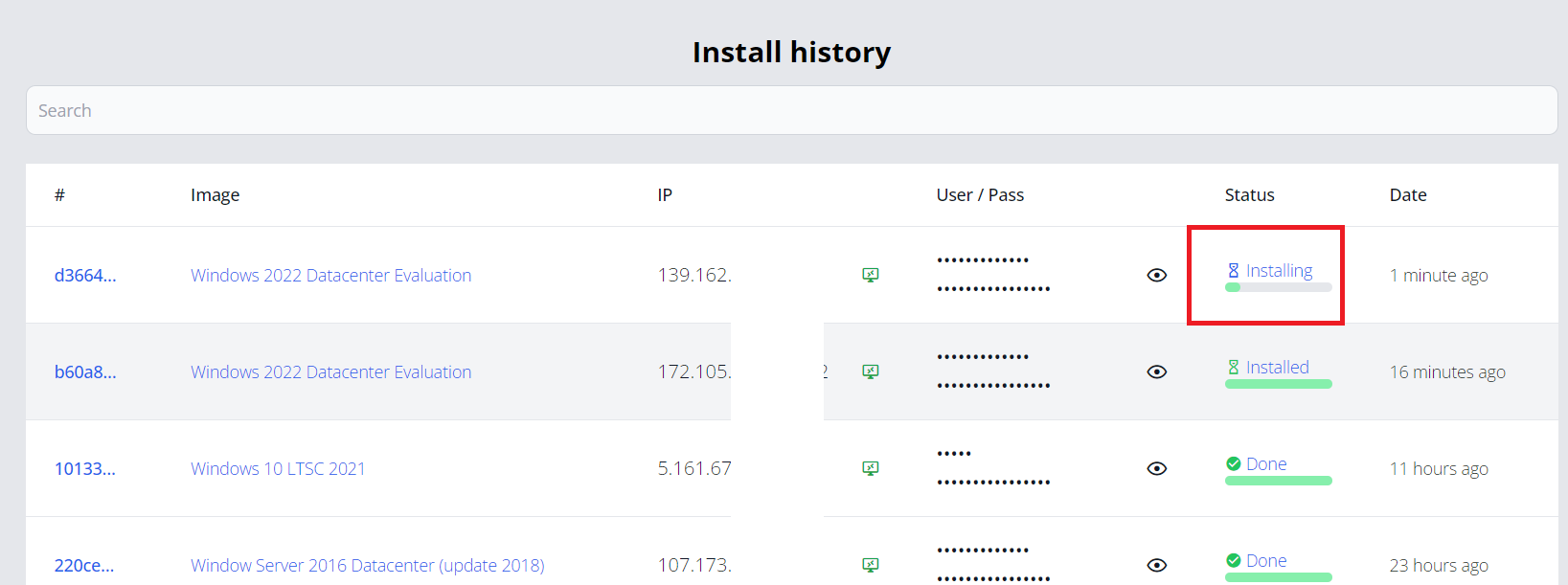
Step 5 - Update Direct Disk (important)
After instance appear in TinyInstaller website we need to update Configuration in Linode. There are 2 valid points to update:
- If TinyInstaller show "Installing" then just update to Direct Disk
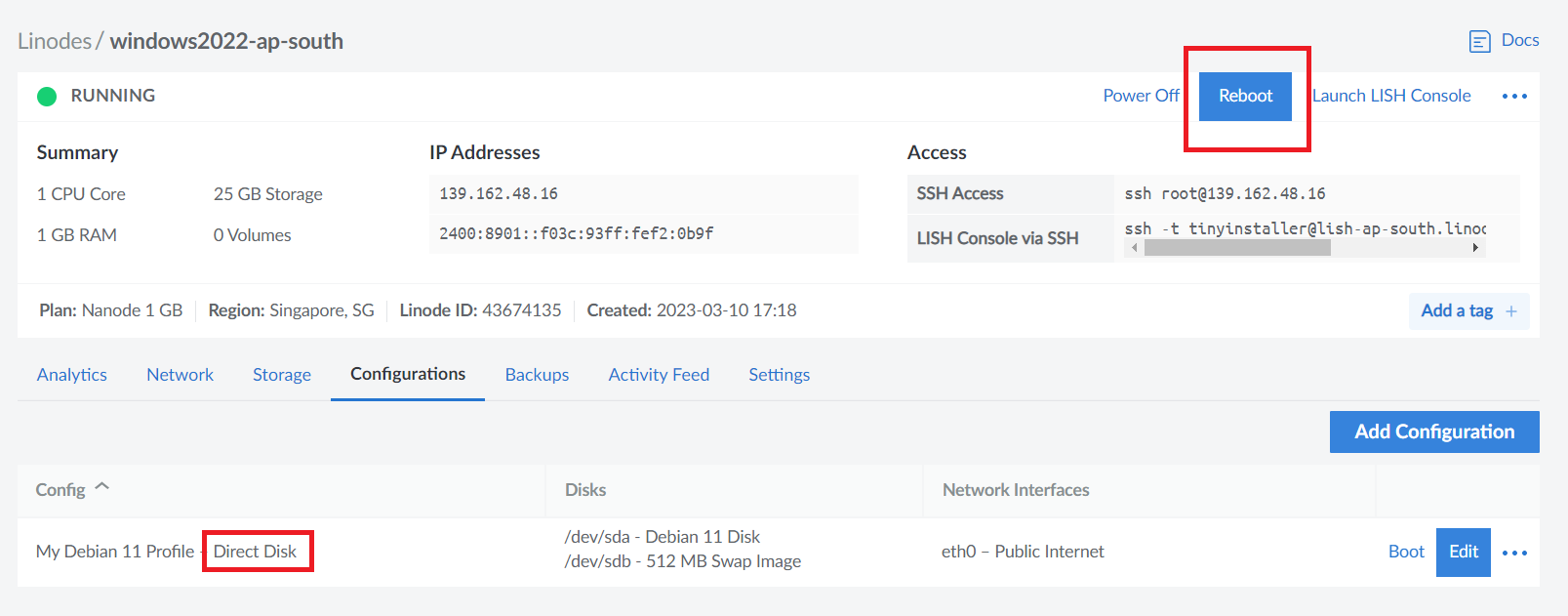
- If TinyInstaller show "Installed" then update to Direct Disk and Reboot
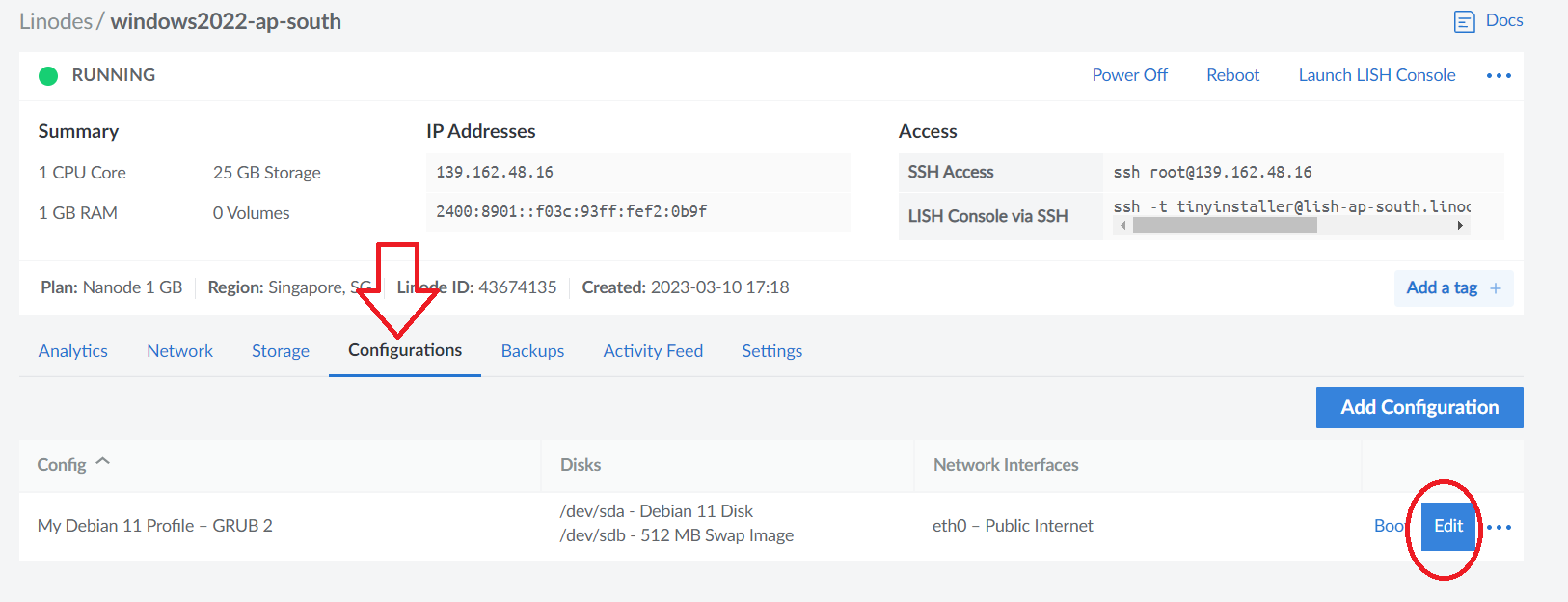
Change Boot Setting to Direct Disk then Save Changes
Reboot instance
Wait it boots up and connect. It may take 10-15 min, please be patient. When you see Status changed to Done it's time to connect via RDP
